Issue
How to find and clean the crash records in a Colorado configuration that are showing as “Conflicting values”
Explanation
PdMagic has published a number of articles describing the various ways injury severity may be coded in a Colorado database. The primary reference is Colorado overall crash severity. In addition, there is Colorado Injury Severity – Analysis Tools which enumerates the various filters, reports and field lists that can be used to identify severity levels. Please refer to those articles to clarify anything mentioned in this article.
First – most data after 2020 should be pretty clean and not in need of any corrections.
Second – we can’t tell you when a record has incorrect values. We can tell you when injury severity values conflict between different fields in a record
This article is specifically for correcting crash records that are reported as having conflicting overall injury count values compared with values reported in KABCO fields. Most police RMS systems collect an injury severity for each “occupant”. We use those values to calculate aggregates. Some RMS system also aggregate those values into sums. That can cause problems if the occupant data is later changed. The most problematic case is when the officer is required to enter the sums and there isn’t validation to make sure that they match up with the occupant records.
Here are the steps to identify and correct those values in Crash Magic.
Solution
Here are the detailed steps to identify and correct any conflicting reports:
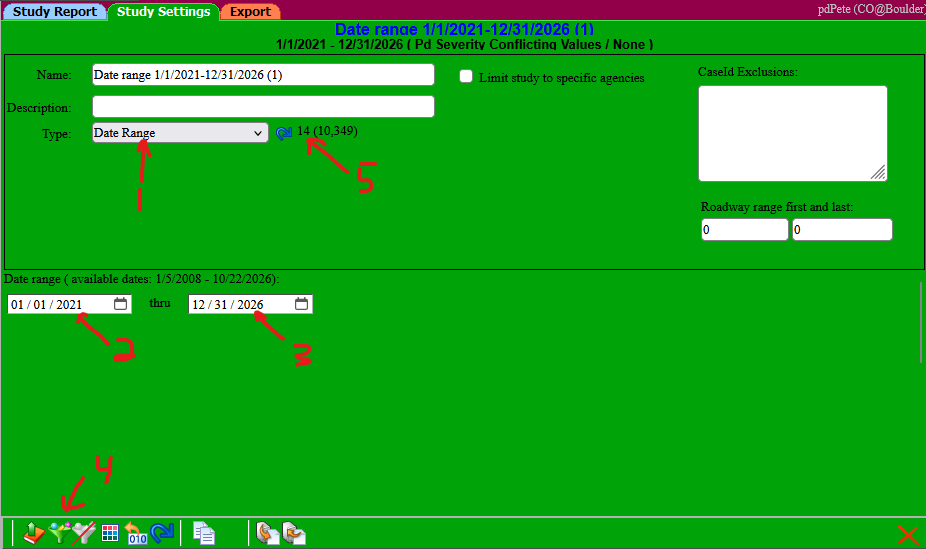
- Identify how many of your crash records have conflicting sum vs occupant values.
- Click to create a new study.
- On the settings tab, choose the “Date Range” study type.
- Enter the date range that you want to validate.
- Click the filter button and select the “Pd Severity Conflicting Values” filter.
- Click the blue “update records” button to show the number of crash records with conflicting values. If that value is 0, there none of the described conflicts. You’re done.
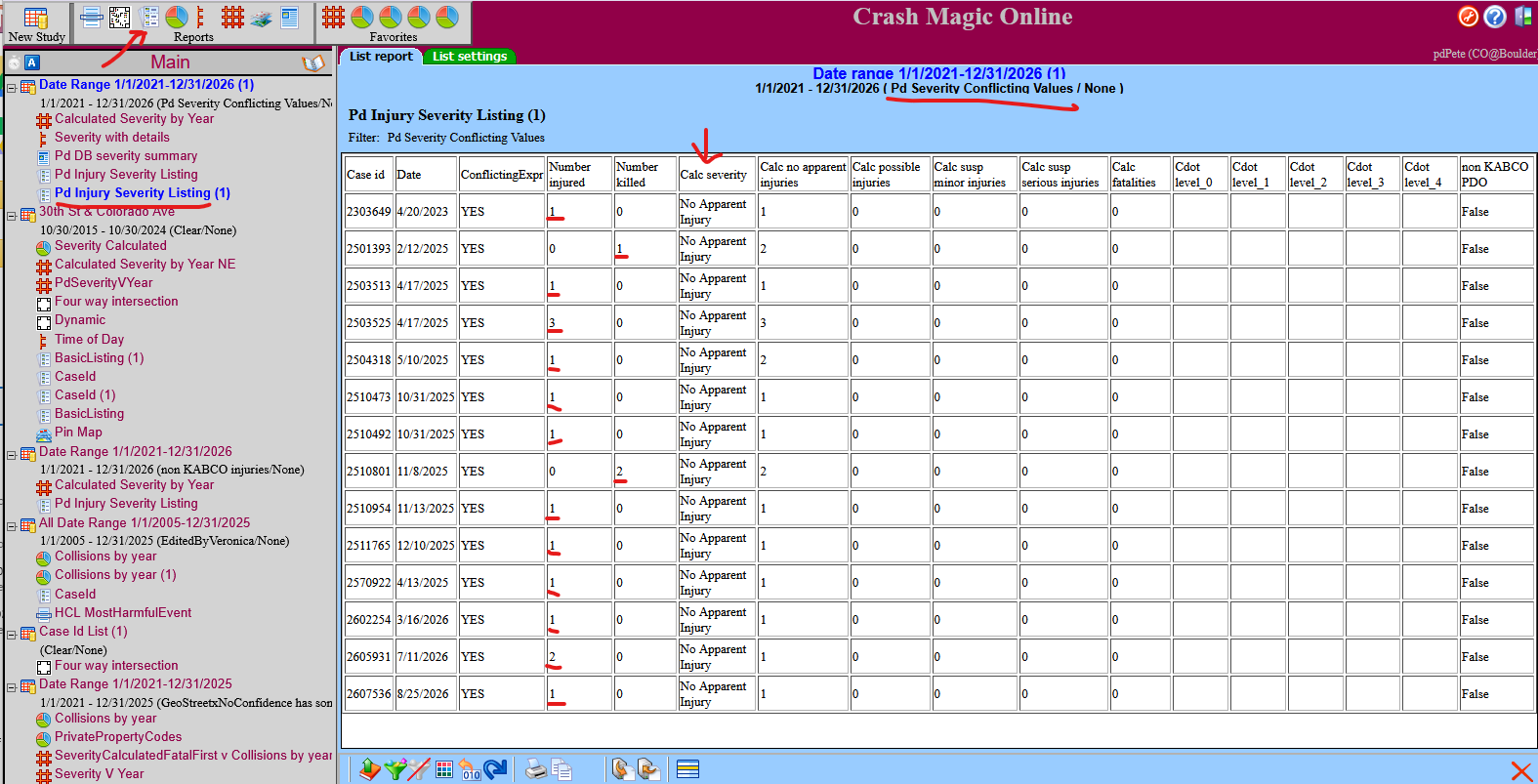
- List the values in the crash records that may be helpful in determining where the conflict is.
Note: If there are more than a thousand records to examine, it may be better to simply export the data to a spreadsheet using the “Pd Injury Severity fields”.- Click the new listings button at the top of the screen.
- Select the “Pd Injury Severity Listing” template.
- Review the report. The “Calc severity” column reflects the most severe severity recorded across all occupants. For a crash to be in this report, that value will be “No Apparent Injury”. The two columns to the left indicate the number if injuries and fatalities. One of those will indicate a non-zero number.
- For each conflicting record, locate the source data and identify which value is correct. (Number Injured/Number Killed or Occupant Severity) Make a note of which number or severity field(s) needs to be changed.
- Correct the data.
The best way to correct the data is in the police RMS system, followed by re-exporting and importing the new data. This is usually not possible.- Using an existing Crash Magic user account with Data Entry permissions, select “Data Entry” from the login form.
- Launch the Data Entry program and log in.
- Select a data entry definition to use:
- If the Number of Injuries or Number of Fatalities needs to be changed, use the simple “Number of Injuries Fatalities” definition.
- If one of the first 3 drivers needs to have their severity changed, use the standard “Crash Form – Long” definition.
- If any of the non-driver occupants need to have their severity changed, use the “Passengers Only form” definition.
- Enter the case number to edit and make the desired changes to the crash record
- Return to step 1 to verify your changes